SALT 501 · Advanced · AI Tooling

The AI toolchain. Installed, signed in, working.

Six tools, one editor. Pick the ones you want, skip the ones you don't. Install commands lifted from the official docs and cited inline — so you can verify everything yourself.

v1.0 · 2026-05-09 · Sources cited per section

How we work with AI at Saltify.

Writing Salt with AI in 2026 isn't one tool — it's a small toolchain. VSCode is the editor. The SaltStack extension makes YAML+Jinja readable. Copilot Chat handles the in-line "complete this loop" requests. Claude in Chrome reads docs and tickets while you code. Claude Code does the heavy lifting — refactoring across files, running tests, opening pull requests. You don't need all six. Pick what fits your workflow.

Each section below quotes the install command verbatim from the official source and cites it. If a step changes upstream, you'll catch it by clicking through.

This is the install guide, not the opinion piece. Saltify's actual prompts, custom instructions, and MCP server configs live in a follow-up article (coming soon). For now this page gets the toolchain installed and signed in.

VSCode — Windows or macOS.

If you don't already have it, this is the editor everything else hooks into. Free, MIT-licensed, weekly auto-updates.

Source: code.visualstudio.com/docs/setup/windows

Download

Two installers. The User Setup doesn't need admin rights and updates cleanly in the background — that's the one you want unless your IT department says otherwise.

# User Setup (recommended)
https://go.microsoft.com/fwlink/?LinkID=534107

# System Setup (admin required, all users)
https://go.microsoft.com/fwlink/?linkid=852157

Install

01

Run VSCodeUserSetup-{version}.exe. Default install path: C:\Users\{Username}\AppData\Local\Programs\Microsoft VS Code.

02

Restart your console. The installer adds VS Code to %PATH, but open consoles won't see the new value until you start a fresh one.

03

Verify by opening any folder with code . from the new console. If it opens VS Code with that folder loaded, you're done.

Source: code.visualstudio.com/docs/setup/mac

Download

https://go.microsoft.com/fwlink/?LinkID=534106

Install

01

Open the downloaded .dmg, drag Visual Studio Code.app into Applications, then launch it from Applications.

02

Add the code command to your shell. Easiest way:

Open the Command Palette (⌘⇧P), type shell command, run Shell Command: Install 'code' command in PATH.

03

Or do it manually for zsh:

cat << EOF >> ~/.zprofile
# Add Visual Studio Code (code)
export PATH="\$PATH:/Applications/Visual Studio Code.app/Contents/Resources/app/bin"
EOF

Restart the terminal so $PATH picks it up.

VS Code ships weekly and auto-updates by default. Disable in settings if you want to pin a version, but the AI extensions below assume you're on a recent build.

SaltStack extension — by korekontrol.

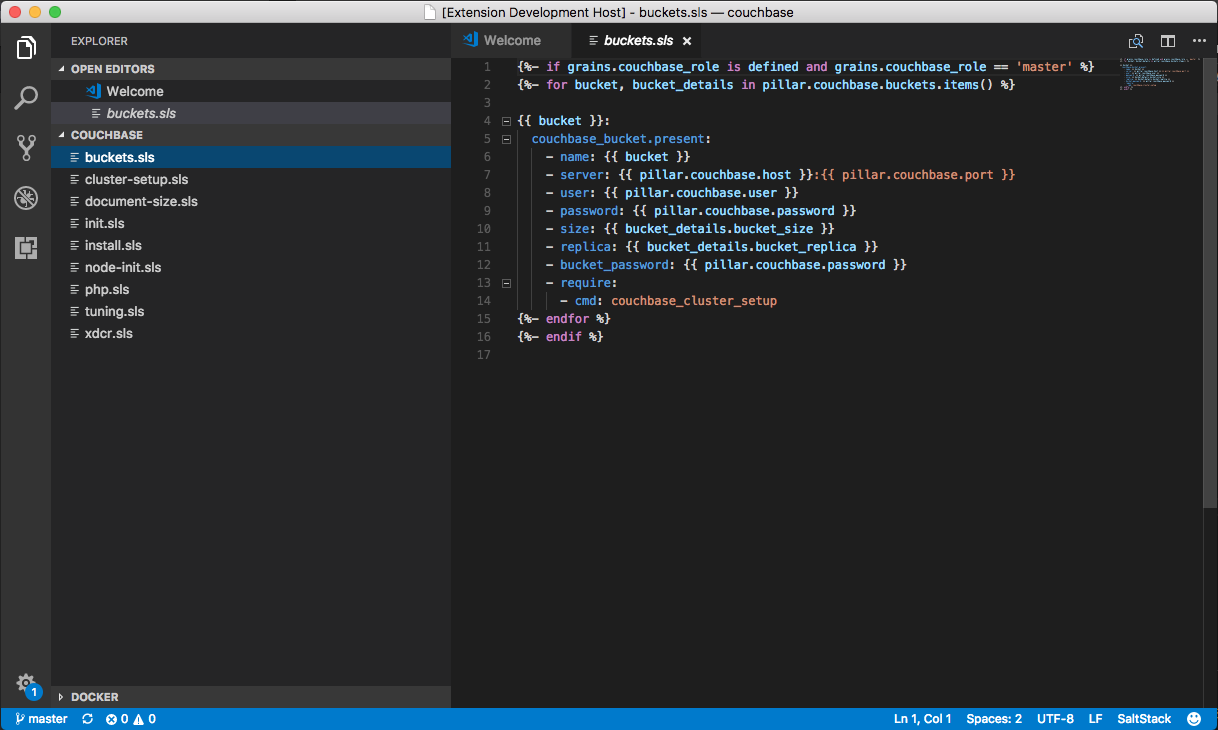
This is the only Salt-aware extension worth installing. YAML + Jinja2 syntax highlighting, autocompletion for state functions, and snippets that scaffold full state stanzas. .tst saltcheck files supported too.

69k+ installs 5.0 · 5 reviews MIT licensed Min VS Code 1.19+

Sources: marketplace.visualstudio.com · github.com/korekontrol/vscode-saltstack

Install

Two ways. Pick whichever feels faster.

A

From the command line (after VS Code's code command is in your PATH from §1):

code --install-extension korekontrol.saltstack
B

From the editor: open Quick Open (⌘P on Mac, Ctrl+P on Windows), paste:

ext install korekontrol.saltstack

Or open the Extensions view (⌘⇧X / Ctrl+Shift+X), search "SaltStack", click Install.

What you get

Open any .sls file and the YAML/Jinja2 mix gets coloured properly. Type test. and hit Ctrl+Space for state-function completion (test.check_pillar, test.configurable_test_state, test.nop, etc.). Module-level completions scaffold the full state with parameter stubs.

SaltStack VSCode extension showing YAML + Jinja2 syntax highlighting on a Salt state file
Source: github.com/korekontrol/vscode-saltstack — extension README

Author: Marek Obuchowicz at KoreKontrol. Source on GitHub ↗

GitHub Copilot Chat — inline + chat panel.

The other industry default. Inline completions, chat panel for "explain this", agent mode for multi-file work. Works on Salt YAML+Jinja the same way it works on anything else — language-model-shaped, not Salt-aware specifically.

73M+ installs 3.0 · 306 reviews v0.45.1 · Apr 2026 Subscription required

Source: marketplace.visualstudio.com — GitHub.copilot-chat

About that 3-star rating: Copilot Chat ships frequently and the marketplace reviews swing with it. Worth reading the recent reviews before committing to a paid plan. The free tier is enough to try it on a real Salt repo and decide.

Prerequisites

Install

01

From the command line:

code --install-extension GitHub.copilot-chat

Or in VS Code: Extensions view → search "GitHub Copilot Chat" → Install.

02

Sign in with GitHub when prompted. The extension opens a browser tab; authorise, return to VS Code.

03

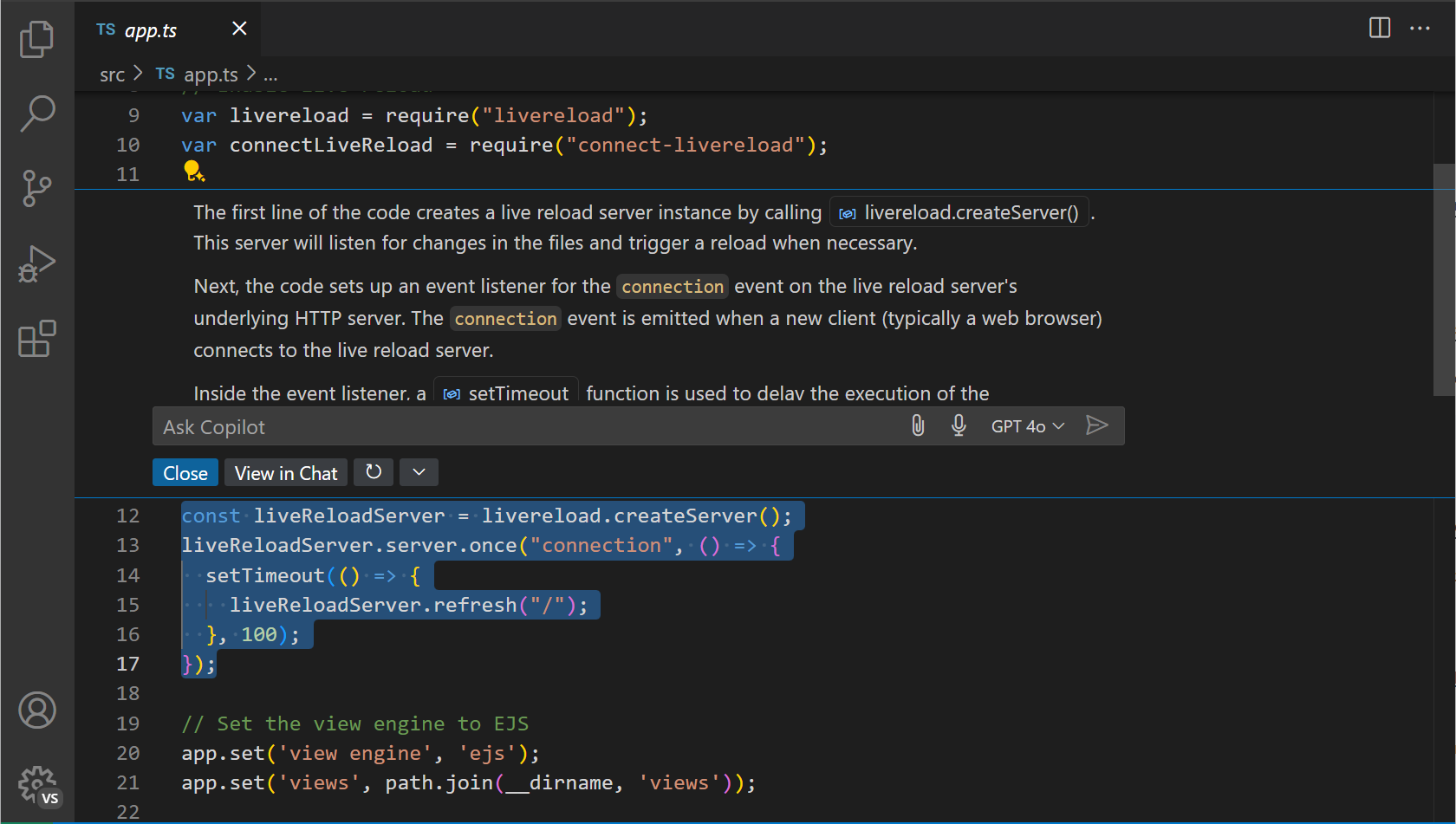
First chat: press Ctrl+I (Windows / Linux) or ⌘I (Mac) inside any file to open inline chat. Ask a question. The reply appears as a diff you can accept or reject.

GitHub Copilot Chat inline-chat prompt example showing a question being asked directly in the editor
Source: code.visualstudio.com/docs/copilot/copilot-chat

Beyond inline chat

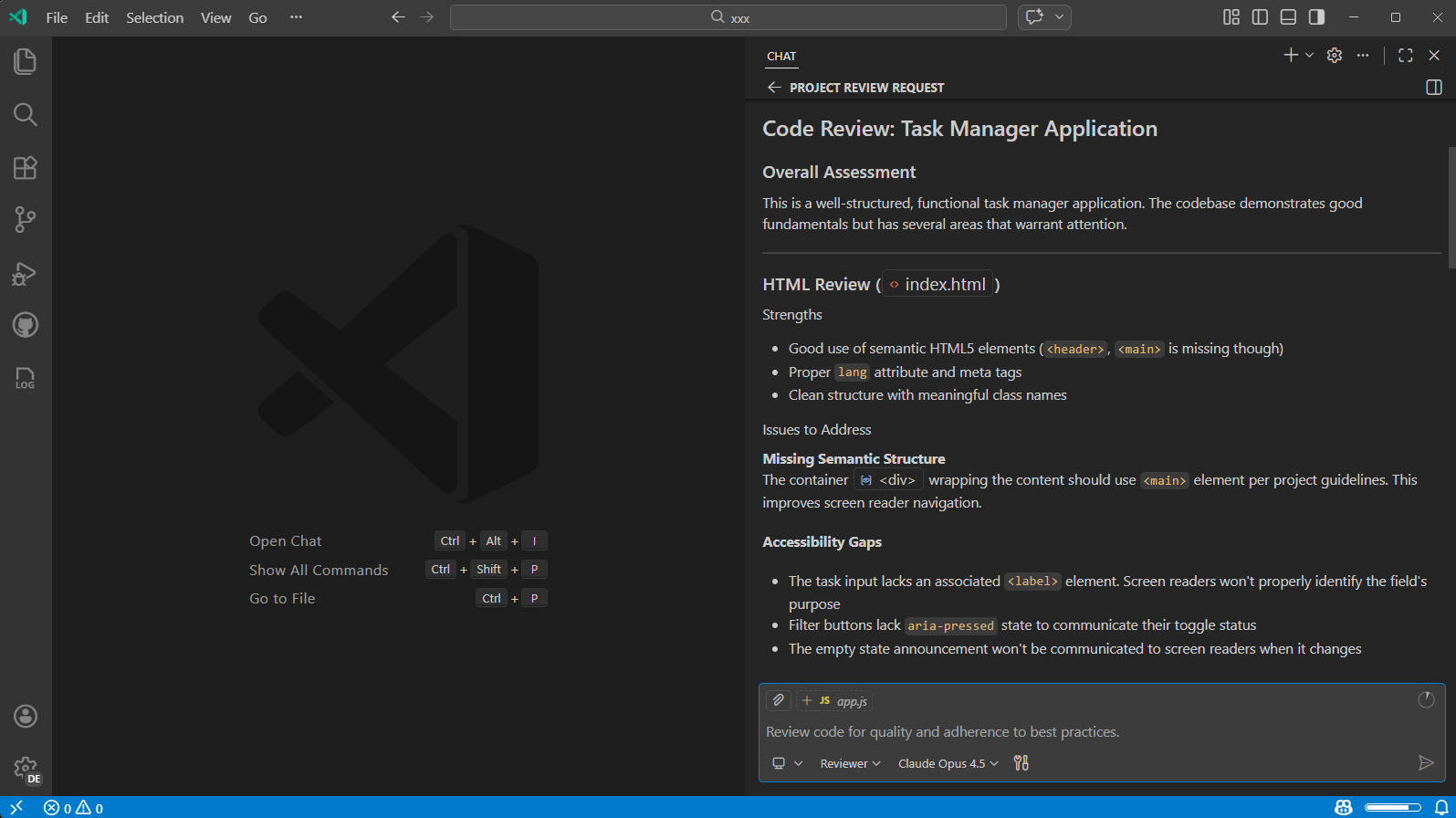
The chat panel (sidebar icon, or Ctrl+Alt+I / ⌘⌃I) gives you a multi-turn conversation with full repo context. Agent mode takes a high-level instruction and edits across multiple files until tests pass.

GitHub Copilot Chat custom reviewer mode interface showing an agent-style review of code changes
Source: code.visualstudio.com/docs/copilot/customization

Full quickstart in the official docs ↗.

Claude in Chrome — the gentlest AI on-ramp.

Side-panel Claude that lives in your browser. Reads the page you're on, answers questions about it, can click and navigate when you ask. Not a coding tool per se — but invaluable for triaging Jira tickets, reading SaltStack release notes, summarising long Slack threads while you work.

Beta Chrome only Paid plans (Pro / Max / Team / Enterprise)

Source: support.claude.com · claude.com/claude-for-chrome

Free Claude.ai accounts don't qualify. Claude in Chrome is currently in beta on paid plans only. And it's Chrome-only — Edge, Brave, Opera and other Chromium forks aren't supported.

Install

01

Open Chrome and go to the Web Store listing:

https://chromewebstore.google.com/detail/claude/fcoeoabgfenejglbffodgkkbkcdhcgfn

Click Add to ChromeAdd extension.

02

Sign in with your Claude account when prompted.

03

Pin to toolbar: click the puzzle-piece icon in Chrome's toolbar, find Claude, click the thumbtack. The Claude icon now stays visible.

04

Click the Claude icon. A side panel slides out alongside whatever page you're on. Ask "summarise this" while looking at any docs page; ask "what's wrong with this YAML" while looking at a state file in GitHub.

It pairs with Claude Code. Once both are installed (Claude Code below), you get a build-test-verify loop: build with Claude Code in the terminal, ask Claude in Chrome to verify the result in the browser, debug from console output. See the Claude Code + Chrome integration docs ↗.

Claude Code — inside VSCode.

The graphical version. Side panel, inline diffs, @-mentions, plan-review-then-execute mode. The recommended way to use Claude Code if you live in VS Code.

Source: code.claude.com/docs/en/vs-code

Prerequisites

Install the extension

01

From VS Code: open Extensions (⌘⇧X / Ctrl+Shift+X), search Claude Code, click Install. The extension ID is anthropic.claude-code.

Or from the command line:

code --install-extension anthropic.claude-code
02

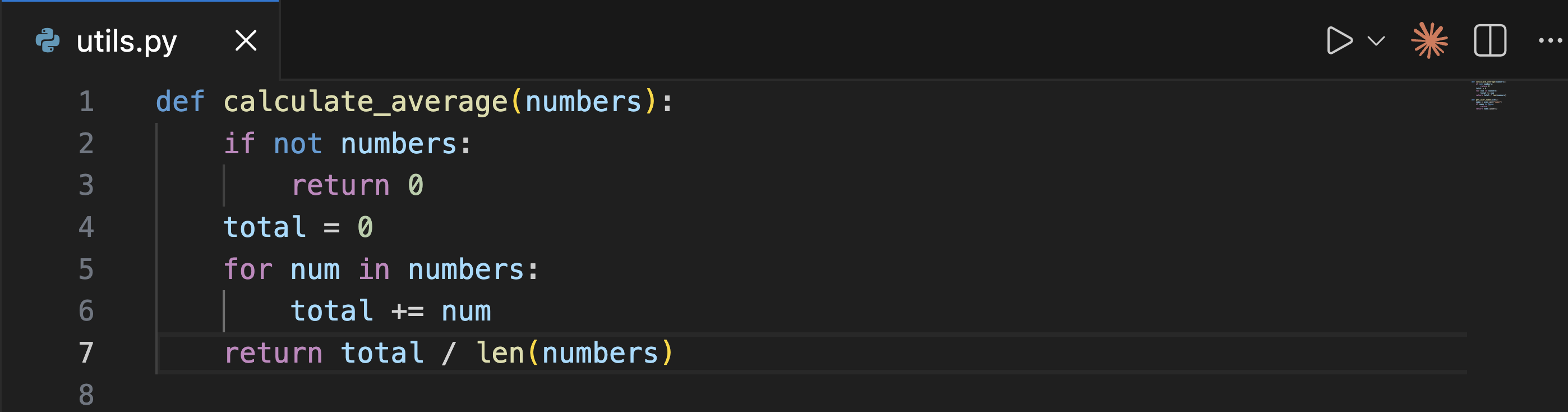
Open the Claude Code panel. Easiest: click the Spark icon ✱ in the top-right of the editor toolbar (only appears when a file is open). Other ways: Activity Bar Spark icon (sidebar), Command Palette → "Claude Code: Open in New Tab", or click ✱ Claude Code in the bottom-right status bar.

03

Sign in. The extension opens a browser tab; authorise, return to VS Code. Credentials are stored locally — you sign in once.

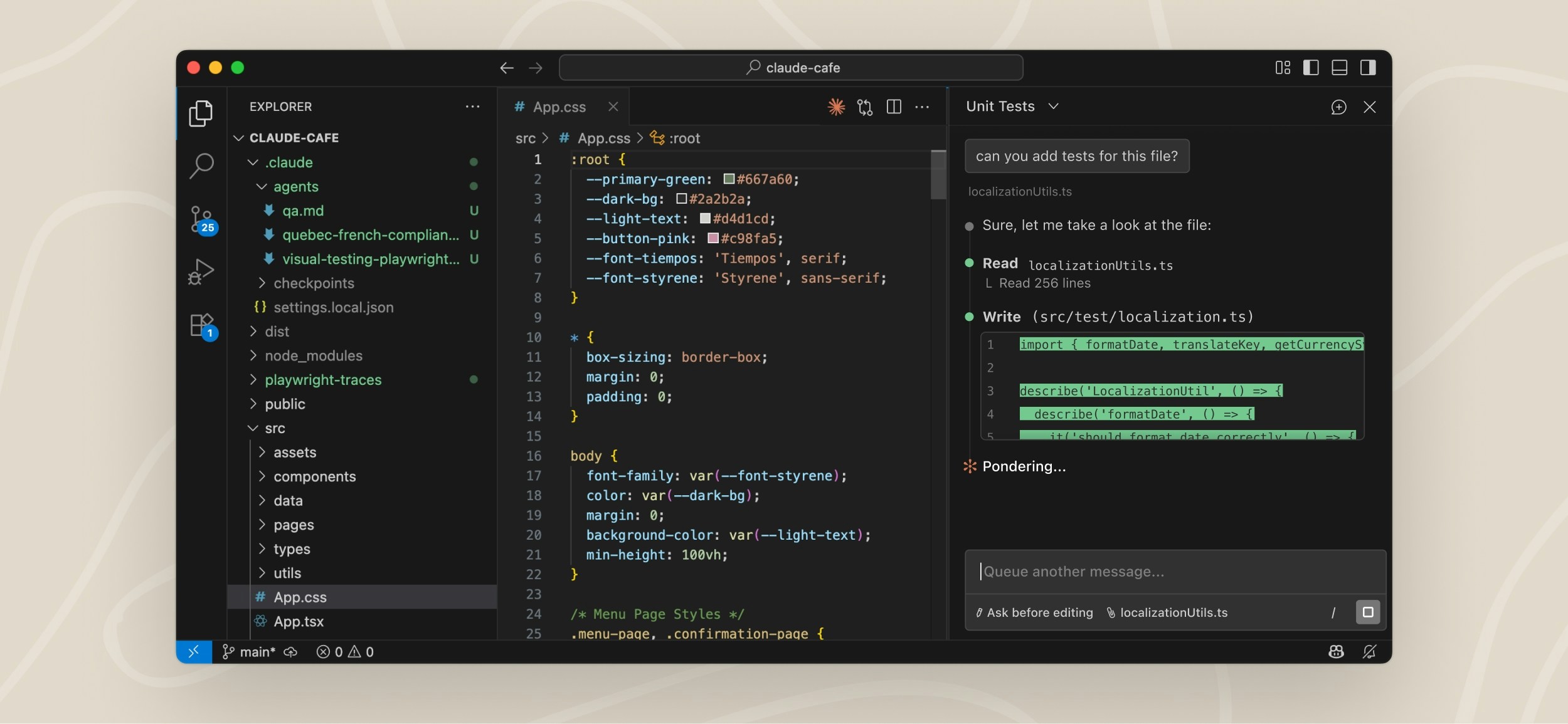
VS Code with the Claude Code extension panel open on the right side, showing a conversation with Claude
Source: code.claude.com/docs/en/vs-code — Claude Code in VS Code overview

Spark icon — where to click

VS Code editor toolbar with the Claude Code Spark icon highlighted in the top-right corner
Source: code.claude.com/docs/en/vs-code

Send a prompt

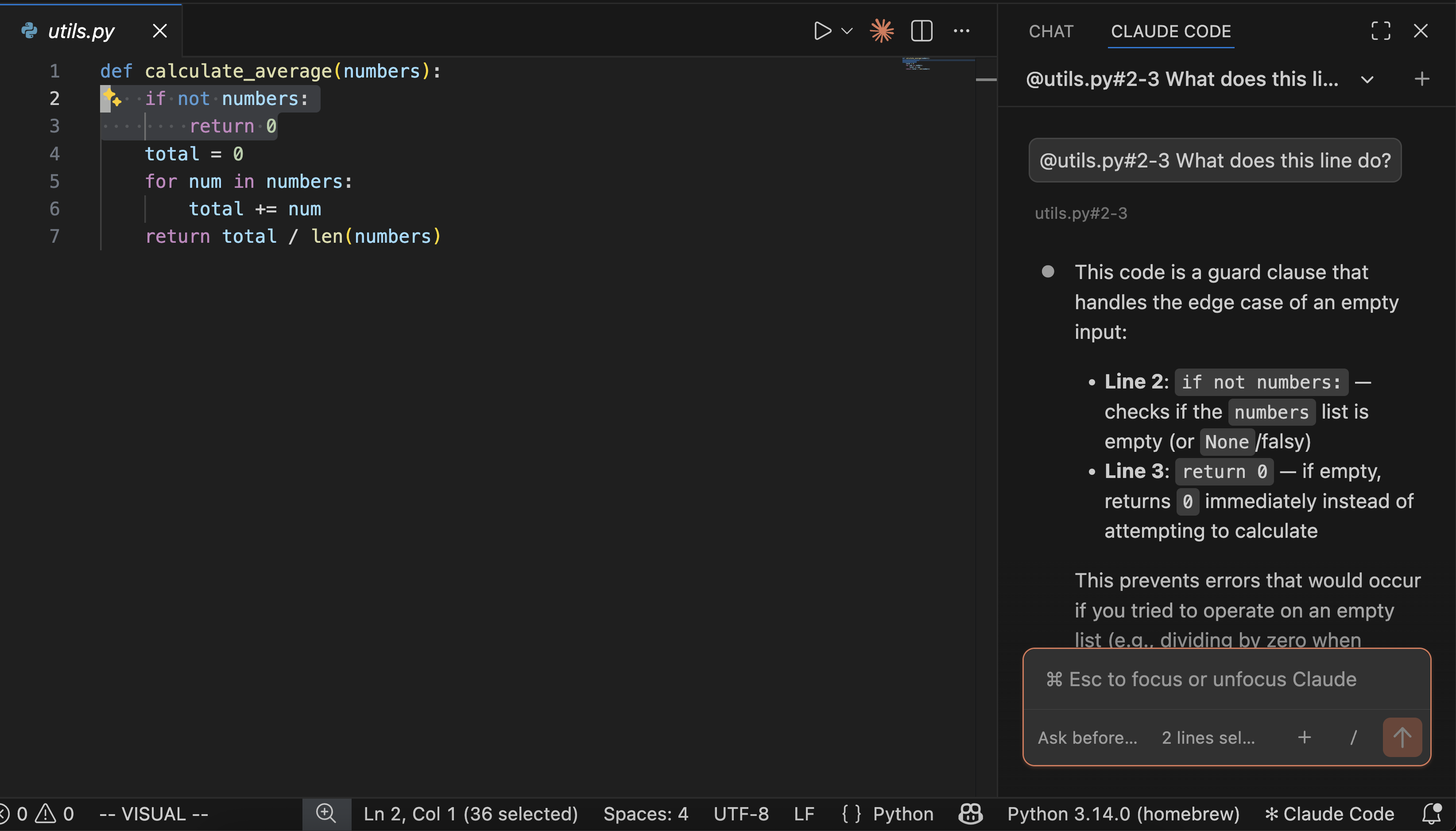
Select some lines in your file. Press Option+K (Mac) / Alt+K (Win/Linux) to insert a typed @-mention reference (like @app.ts#5-10) into your prompt. Or just type your question — Claude sees your selection automatically.

VS Code with a Python file selection on the left and Claude Code asking a question about those specific lines on the right
Source: code.claude.com/docs/en/vs-code

Review changes before they land

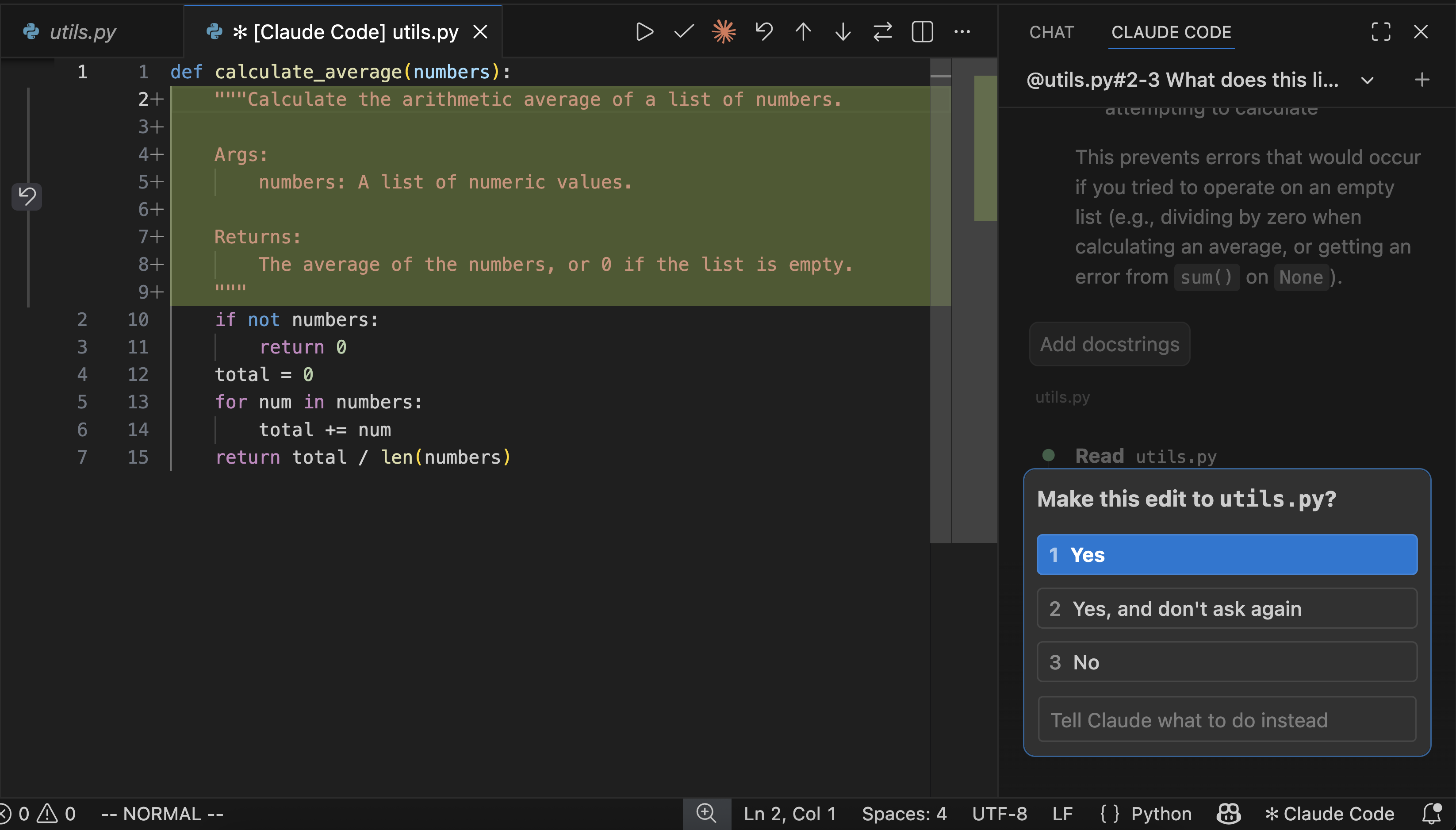
When Claude wants to edit a file, you get a side-by-side diff. Accept, reject, or edit the diff inline before accepting.

VS Code showing a diff of Claude's proposed changes with a permission prompt asking whether to make the edit
Source: code.claude.com/docs/en/vs-code

Useful shortcuts. ⌘Esc / Ctrl+Esc toggles focus between the editor and the Claude prompt box. ⌘⇧Esc opens a new conversation as a tab. ⌘N starts a new conversation when Claude is focused (enable enableNewConversationShortcut in settings first).

Claude Code — in the terminal.

The CLI is what powers everything. The VS Code extension wraps it; this section installs it standalone — or alongside the extension if you already did §5. Use the CLI when you want speed, scripting, agent mode without a UI, or to run Claude Code in CI.

Source: code.claude.com/docs/en/setup — Advanced setup

System requirements

Install — pick a method

Native installer (recommended — auto-updates)

macOS / Linux / WSL:

curl -fsSL https://claude.ai/install.sh | bash

Windows PowerShell:

irm https://claude.ai/install.ps1 | iex

Windows CMD:

curl -fsSL https://claude.ai/install.cmd -o install.cmd && install.cmd && del install.cmd

If 'irm' is not recognized, you're in CMD not PowerShell. If The token '&&' is not a valid statement separator, you're in PowerShell not CMD. Your prompt shows PS C:\ for PowerShell.

Homebrew (macOS / Linux)

# stable channel
brew install --cask claude-code

# or latest channel
brew install --cask claude-code@latest

Homebrew installs don't auto-update. Run brew upgrade claude-code manually.

WinGet (Windows)

winget install Anthropic.ClaudeCode

npm (any platform with Node 18+)

npm install -g @anthropic-ai/claude-code

Don't sudo npm install -g — that path leads to permission errors and security risks. If you hit npm permission errors, fix your global-prefix instead. The official docs link to a fix guide ↗.

Verify the install

claude --version
claude doctor

claude doctor walks the install and reports any issues — missing ripgrep, PATH problems, login state.

Sign in

claude

First run launches a browser-based sign-in. Use a Pro / Max / Team / Enterprise account, or a Console account with prepaid credits. Free Claude.ai doesn't qualify.

First session

cd into a project directory, run claude, then ask:

what does this project do?

Claude reads files as needed — you don't have to add context manually. From there: add a hello world function, commit my changes with a descriptive message, review my changes and suggest improvements. Plain English.

Useful flags

Flag What it does
claudeInteractive session
claude "task"Run a one-off task and stay in interactive
claude -p "query"One-shot query, exits when done — useful for scripts
claude -cContinue the most recent conversation in this directory
claude -rResume a specific previous conversation (interactive picker)
claude --worktree feat-xStart in an isolated git worktree (parallel sessions)

Run the CLI from inside VS Code. Open the integrated terminal (⌘` / Ctrl+`), run claude. The CLI auto-detects VS Code and integrates: diffs open in VS Code's diff viewer, the editor selection becomes context. From an external terminal, run /ide inside Claude Code to manually connect.

Full reference: CLI reference ↗ · Best practices ↗
Toolchain installed. Now what?

The next article in this series will cover Saltify's actual practices — custom Copilot instructions for Salt repos, MCP servers we use day-to-day, prompts that work, the CLAUDE.md template we drop into client projects. Coming soon.